NEO Planner V5.0 - NEOCP Check - Explanations
Possible strategy for pursuing the NEOCP:
After planning has been carried out in the
Execute Planning
and the
Revise and
Object Information
windows are called,
the NEOCP Check window is called up
there.
Then you call up the background check with audio
signal, which detects all changes in the NEOCP every 5 minutes
and displays them in
the Show Changes
and Log of
Changes windows.
Then you wait relaxed for the audio signal, which
indicates an important change according to your Revise list:
Either new observations have been added to an object, an object has been deleted
or a provisional number has been assigned.
In addition, new objects will be announced acoustically at NEOCP.
The relevance check according to the revise list can be done in the Show Changes or the Log of changes on the NEOCP windows.
If desired, you can now carry out the NEOCP check
here, which automatically stops the background check.
The NEOCP Check replans the NEOCP objects anew in a
short time.
When called up, manually adjusted plans are now retained and
changes to the NEOCP are integrated.
After doing this, you can push the Replanning
Revise button to refresh the Revise
Window and call up the Background Check
again.
By Refreshing Revise, you will be provided with the latest ephemeris of former and new NEOCP objects on the Revise Window.
New feature since May 2025:
When the NEOCP background check is active, a newly assigned provisional number
is now displayed in dark violet in the Hint column
of the Revise Window for NEOCP objects, if available. In this case,
the old NEOCP designation is also displayed in dark violet.
In addition, some columns in the Object Information Window are displayed in dark
violet.
If a new provisional number is displayed in the Hint column, it can be useful to call
the dark violet colored Smart Execute Planning in Revise.
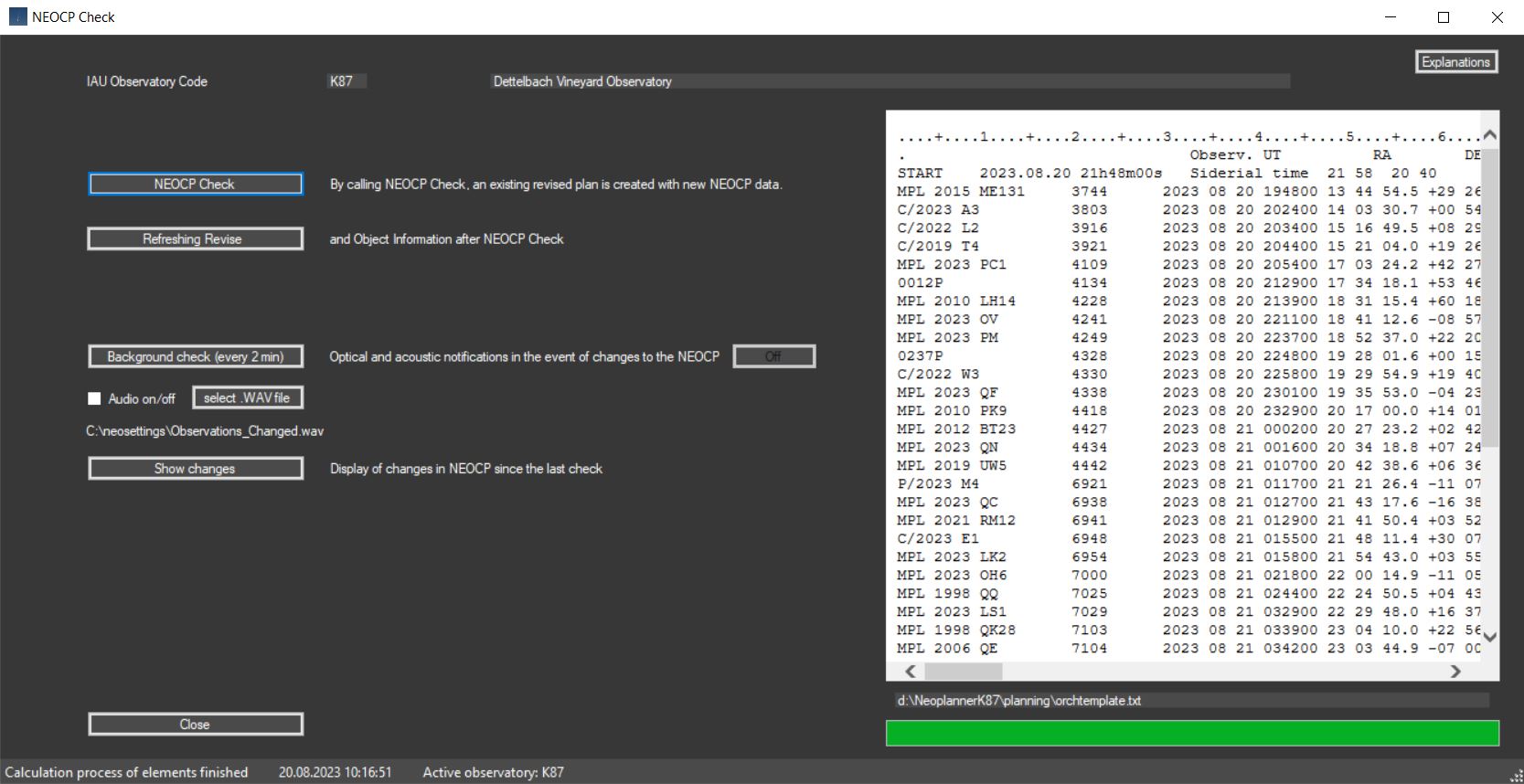
The NEOCP Check function enables the planning to be updated quickly, including
the current NEOCP changes.
It is checked whether there are updates for
individual NEOCP objects,
whether these have been deleted or an M.P.E.C. publication
took place. If new provisional numbers are assigned, these will be determined
and displayed.
When called up, manually adjusted plans are now retained and changes on the
NEOCP are integrated.
Refreshing Revise and Object Information Windows after calling NEOCP Check.
The activation of Background Check enables an automatic tracking of the NEOCP
and thus takes away this tedious manual work.
Every newly reported observation leads to an update of the orbital elements and
thus to a repositioning of the ephemeris.
It is therefore all the more important to be constantly informed about changes
to the NEOCP.
Background Check now takes over this job and provides information via optical
and,
in the event of changes in the number of observations, also acoustic
signals.
Acoustic signals are only sent in the event of a change in the number of
observations of an object,
in the event of deletion or allocation of a
provisional number
and in the case of new objects on the NEOCP.
Automatically output a Logchanges.txt + .csv to the archive folder
every time the NEOCP is changed when Background Check is run.
The Off button stops background processing.
All changes to the NEOCP since the NEOCP Check was last called up are listed
here.
Objects that have been removed from the NEOCP or which have a provisional number
and a publication in an M.P.E.C. are also marked.
A sorting
option is also offered.
The Show changes and Log of Changes windows are automatically displayed and refreshed while the Background Check is activated.
The Show changes window is displayed automatically and shows changes on the
NEOCP every 5 minutes.
The following changes are displayed in green:
- When an object is changed, its designation is marked
- When an object has been removed from the NEOCP
- When an object has been given a provisional number
- When a new object has been inserted
- When the score changes
- When the number of observations changes
- When the brightness Vmag changes
- When the absolute brightness H changes
- When the update date changes
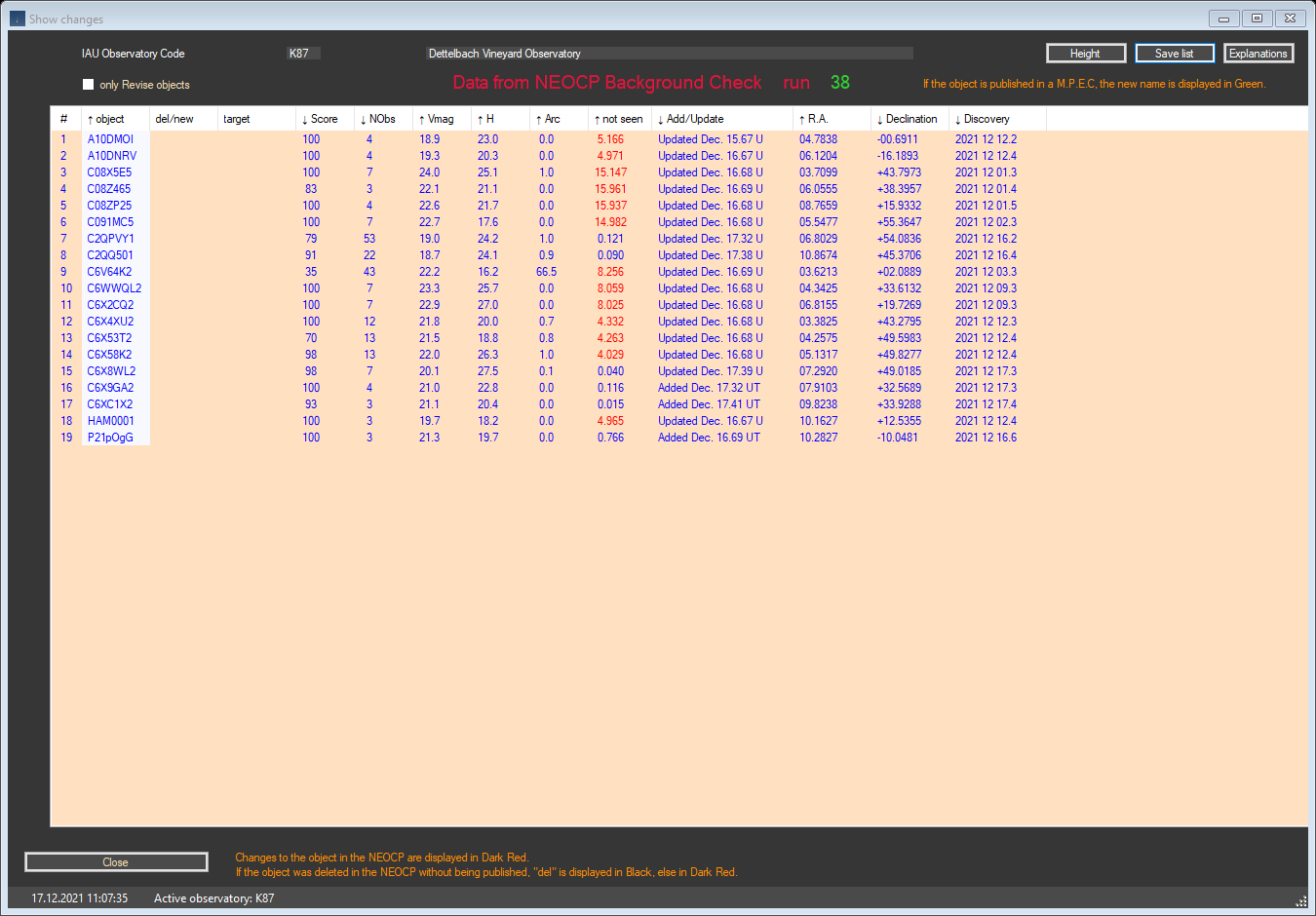
Show changes window displayed every 5 minutes.
In order to reduce the display to the planning objects (Revise
window), activate the checkbox.
If the number of observations of an object changes, if objects have been deleted,
new ones inserted or a provisional number has been assigned,
the background check should be stopped and a new NEOCP check called up manually,
which enables the Revise window to be redisplayed.
Thus, with a few buttons, you can revise the planning and display changed
ephemeris or objects.
Copyright: The data comes from official access to web services from MPC, whose origins are the tireless measurements of dozens of professional and amateur observatories around the world