NEO Planner V5.0 - Ephemeris details - Explanations
Within the picture, click on the area that you want to be explained: (not in all browsers available)
(C) Copyright: The
data comes from official access to web services from
MPC,
JPL,
NASA and
ESA,
whose origins are the tireless measurements of dozens of professional and
amateur observatories around the world
A guide for getting an IAU observatory code you find here: Guide to Minor Body Astrometry (minorplanetcenter.net)
List of observatory codes: List of observatory codes - Wikipedia
Ephemeris Website (same function as the button Ephemeris links below):
The ephemeris of objects that have been saved using the SAVE list button are collected via this link and can be called up there individually on the Internet.
On the one hand, the entire window is saved as .jpg in the archive folder. In
addition,
the content of the list display is saved both in .txt
and .csv files for further
use (see
File Structure settings).
Additional backup of the Ephemeris detail Window as an
.HTM file,
if allowed in the Privacy.
.
Now both the
Revise and the
Object Information
and the
Ephemeris detail Windows can be saved as an HTM file on the NEO Planner
Server
and accessed or linked for free use on the Internet via any browser.
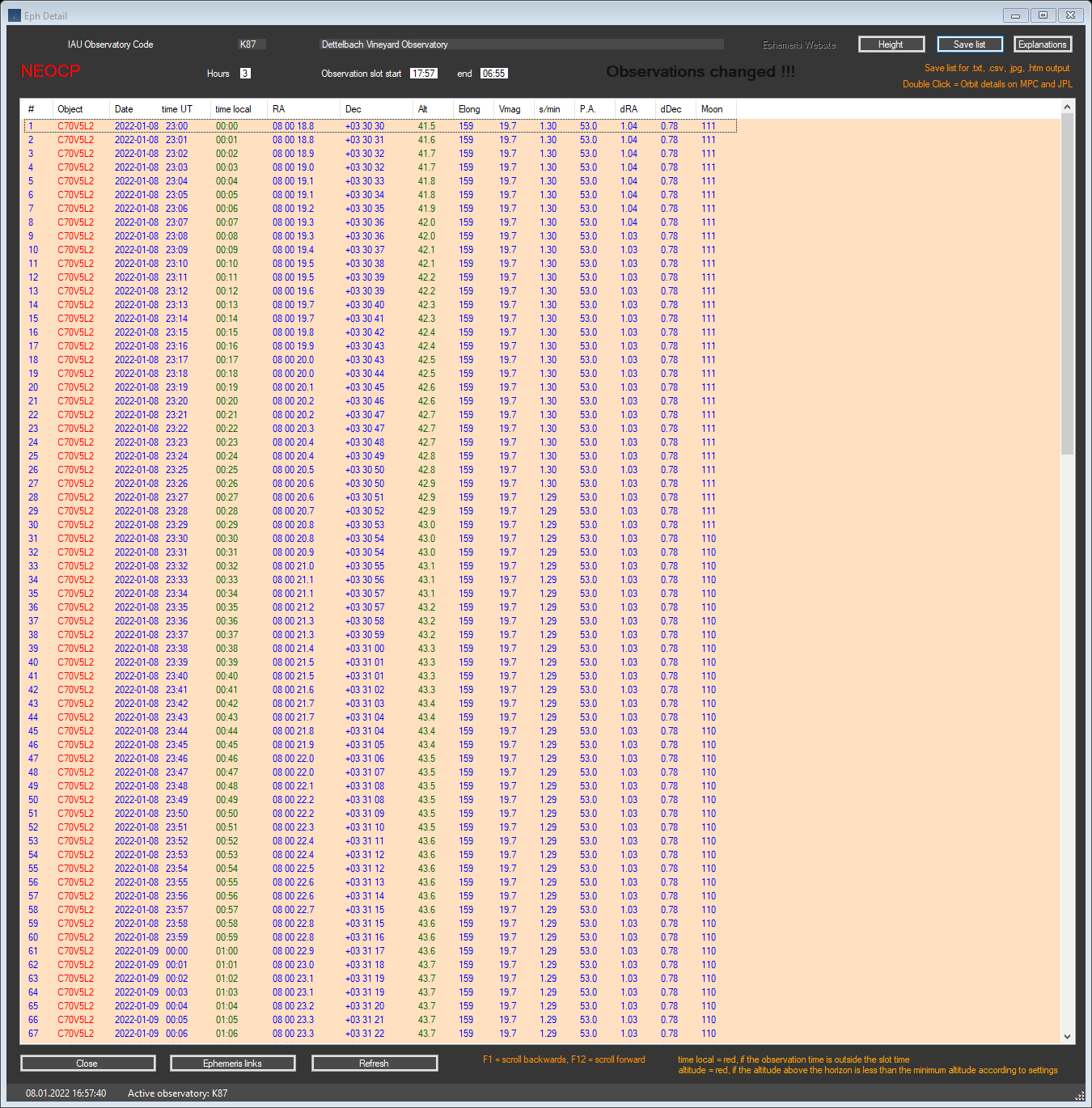
The object types are: Comet in Green, NEO in Blue and NEOCP objects in Red
The ephemeris are displayed by the minute for the selected hours.
The observation period in local time of the coming night.
The basis is the daily loading
of current astronomical data of a location from
IpGeolocation.io, which takes place automatically
when NEO Planner is
started. See also: GEO
Settings.
The offset hours and minutes that were specified in the
Common Restrictions
settings are added or subtracted
from the determined local sunset and
sunrise times.
'Observation changed' in the
header of the display changes the color to RED when the active NEOCP check
notices changes
in the number of observations of the object.
In this case the ephemeris should be recalculated. The warning message is
also displayed on the HTM page (SAVE list button).
Neo Planner calculates observation times in R.A. order of
currently visible comets according to the official publication of the MPC
and
additionally the most recently observed comets from
CometasObs.
The reason for including the
CometasObs observations lies in the sometimes
considerable delay of the MPC in the publication of the last observations.
In addition, all NEOCP objects that can be observed according to the parameter settings are displayed.
In addition, visible NEOs are included that have not yet been numbered, i.e. have a provisional number.
Observation date and time in UT:
The observation time by the minute in UT.
The local observation time by the minute. Ephemeris times outside the slot times are shown in red.
The indicated position in R.A. and Dec. corresponds to the shown observation time.
The ephemeris for comets and NEO come from the MPC, those for NEOCP objects from
JPL's
Ephemeris Scout..
The altitude corresponds to the height of the object above the horizon at the
time of the displayed observation time.
Altitudes below the
settings parameter are shown in red.
The elongation of the object = Angular distance of a celestial body from the sun.
The Vmag for comets and NEO come from the MPC, those for NEOCP objects from JPL's Ephemeris Scout.
The displays for arcsec / minute (s / min) and position angle (PA) refer to the observation time and come from JPL's Ephemeris Scout.
Display of the dRA and dDec proper motion of NEOCP objects to enable the proper movement in RA and Dec for direct tracking of the objects.
The distance between the moon and the object in degrees
relate to the observation time and come from the MPC or
Ephemeris Scout from JPL.
By pressing the E key in a line of an objects
in Revise window, you get a display of
ephemeris to the minute here,
which can be selected up to a period of 8 hours.
Here you can save the ephemeris with SAVE
LIST top right.
The Ephemeris
list button then points to a website from which you can call up all the
ephemeris of the planning from any PC.
The calculation of the ephemeris is carried out again with the basic settings.